Join our WhatsApp Channel to get updates about our latest TDL ✨ Enhancements, 🚀 New TDL add-ons, 🛠️ Bug Fixes, 🔥 Offers and more.


Detailed Guide on How to Use
Automobile Vehicle Sales Billing in TallyPrime
Once you have activated the free trial or license version of this module follow the steps below to implement Automobile Vehicle Sales Billing module in TallyPrime.
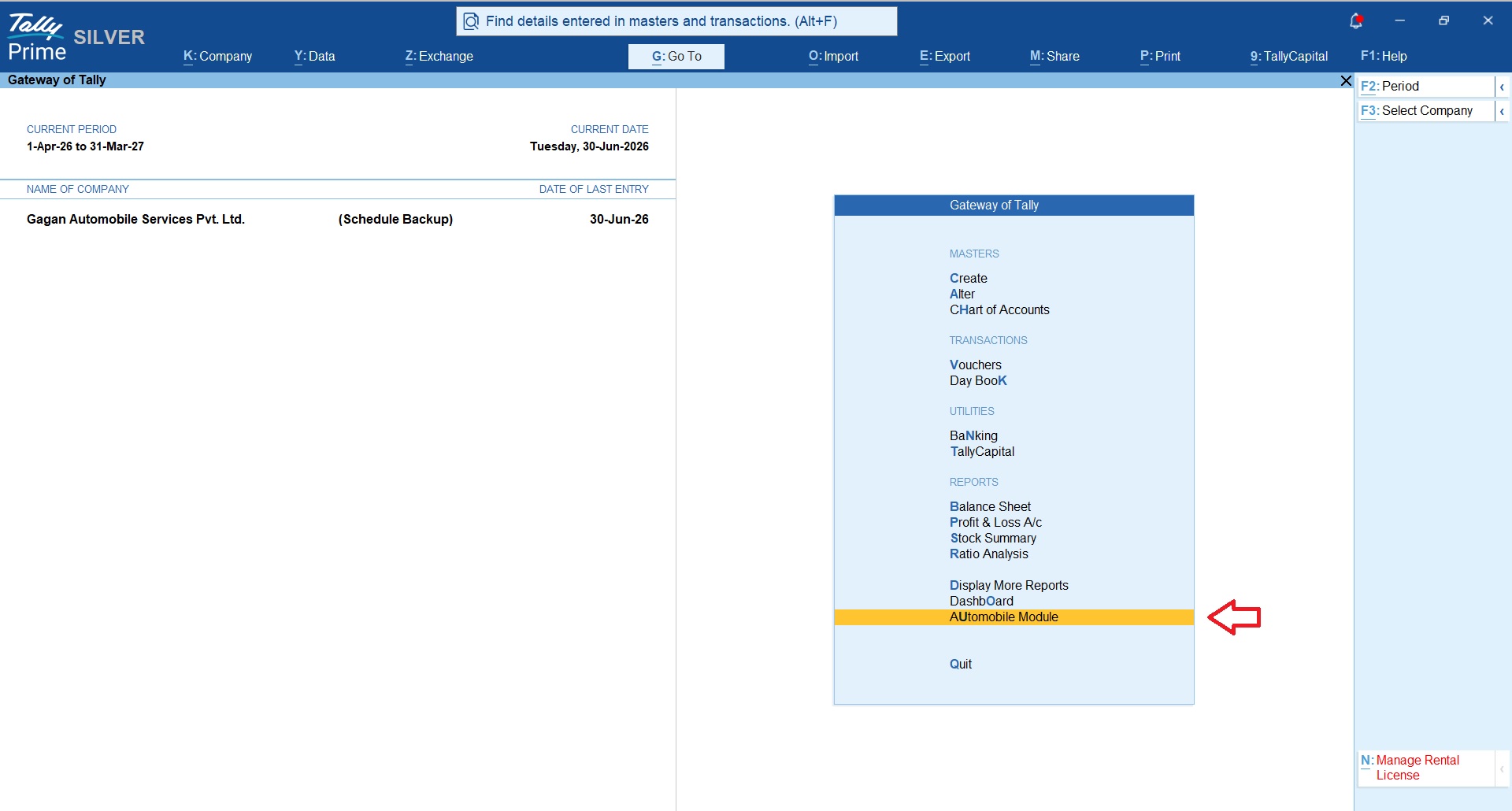
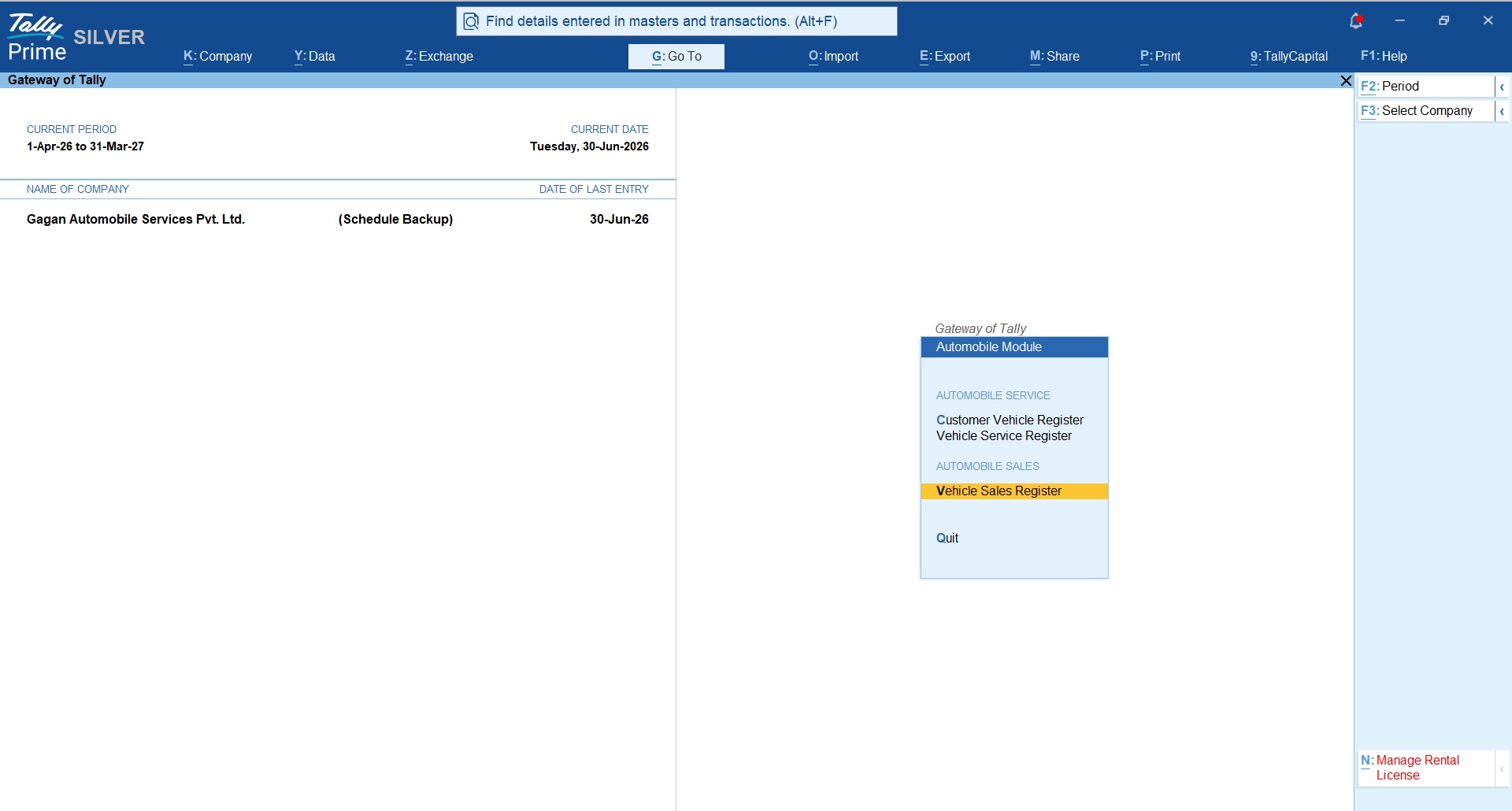
New Menu : Automobile Modue
Sales Voucher Type Configuration
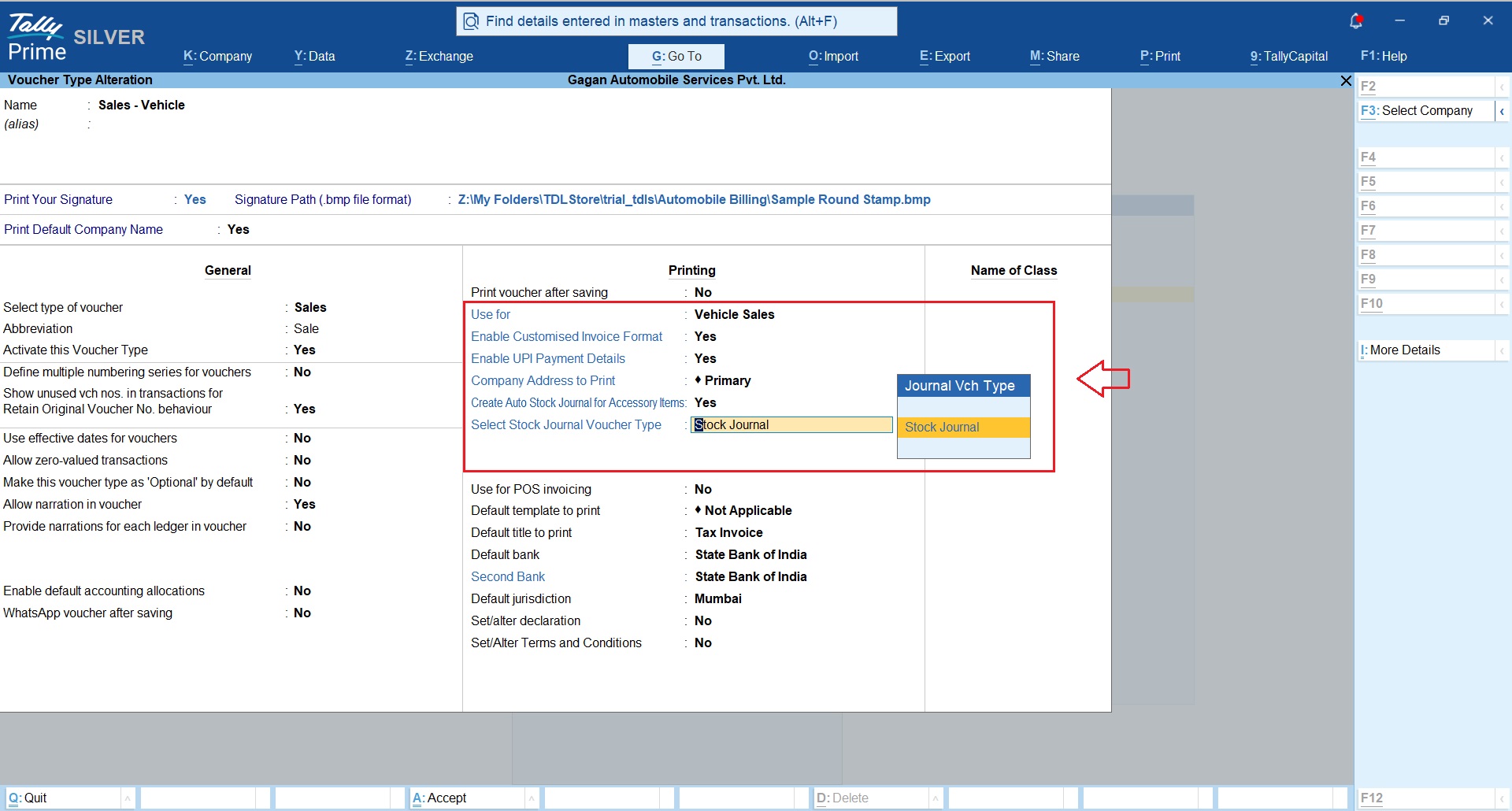
You may continue to use existing sales voucher type or create new sales voucher type and set option “Vehicle Sales” as shown in below snapshot to enable the vehicle sales billing capabilities.
Additionally you can enble following additional options;
- Set your signature image path
- Set your UPI details
- Set Yes to option Create auto stock journal entry for consumption of accessories issued with vehicle sales
Customer Ledger
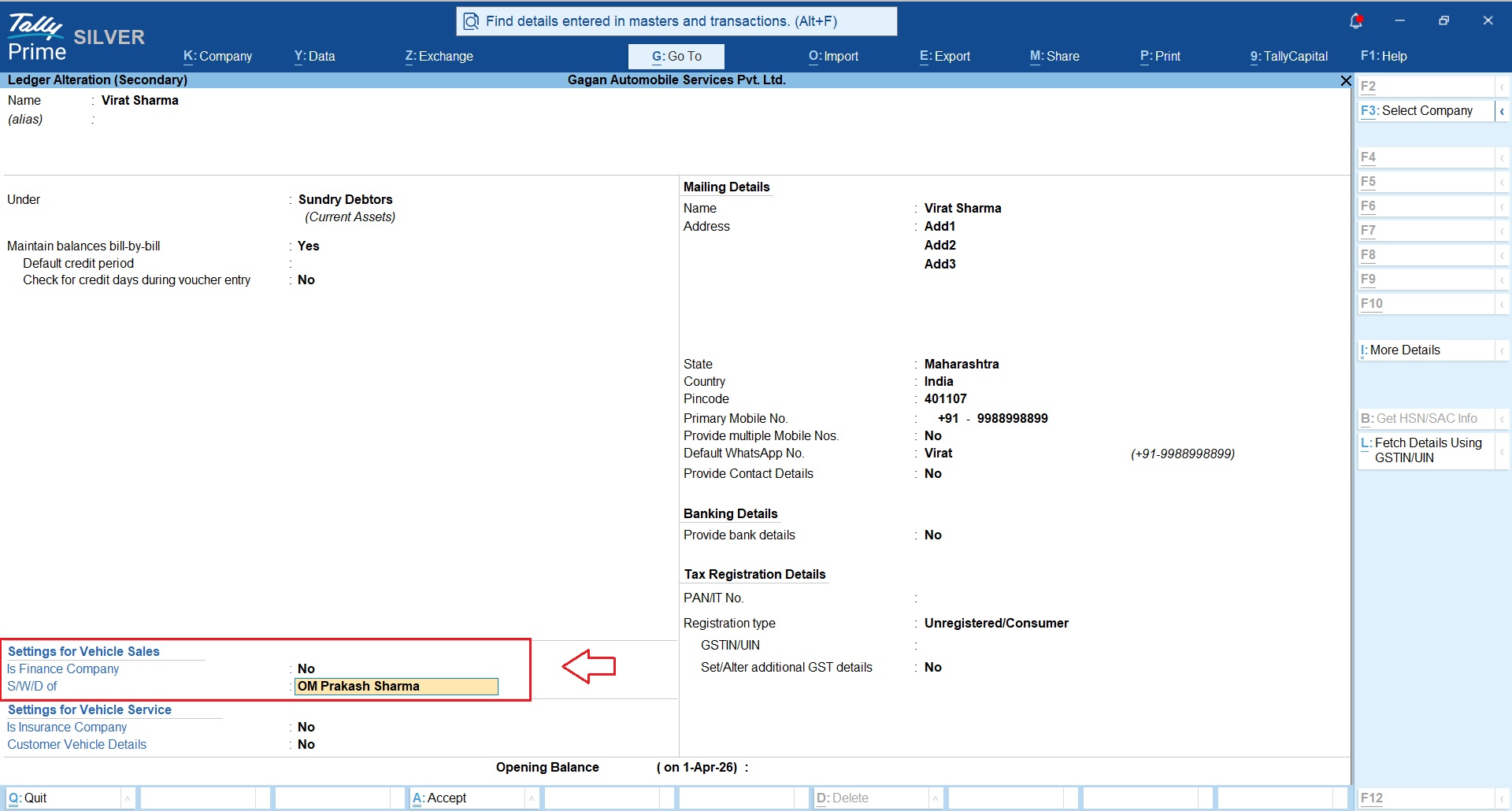
In customer ledger you can define details of Son Of / Wife Of / Daughter Of and this will be printed on the Invoice and trade certificate
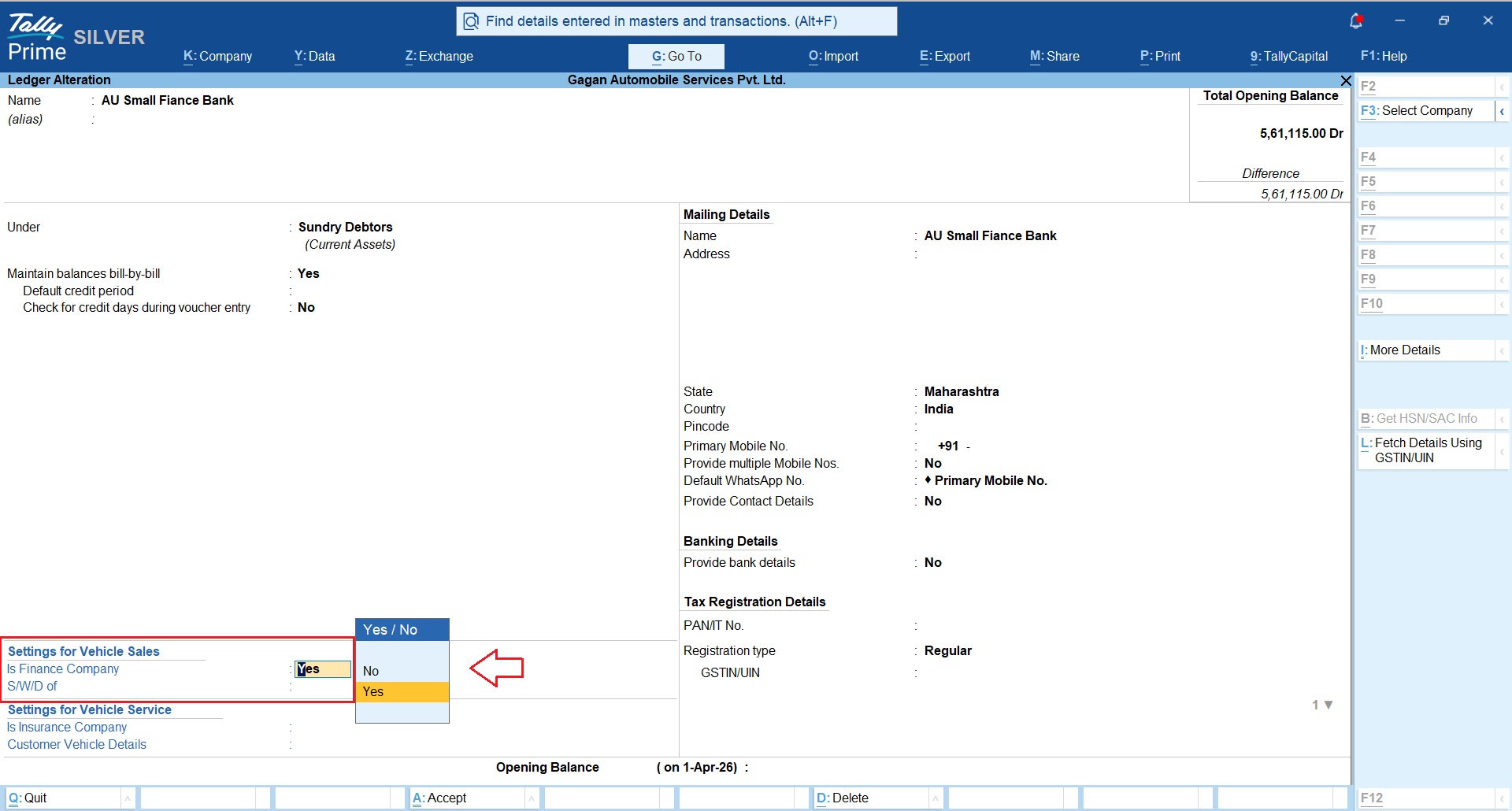
Finance Company Ledger
Set “Is Finance Company = Yes” for the finance company ledger.
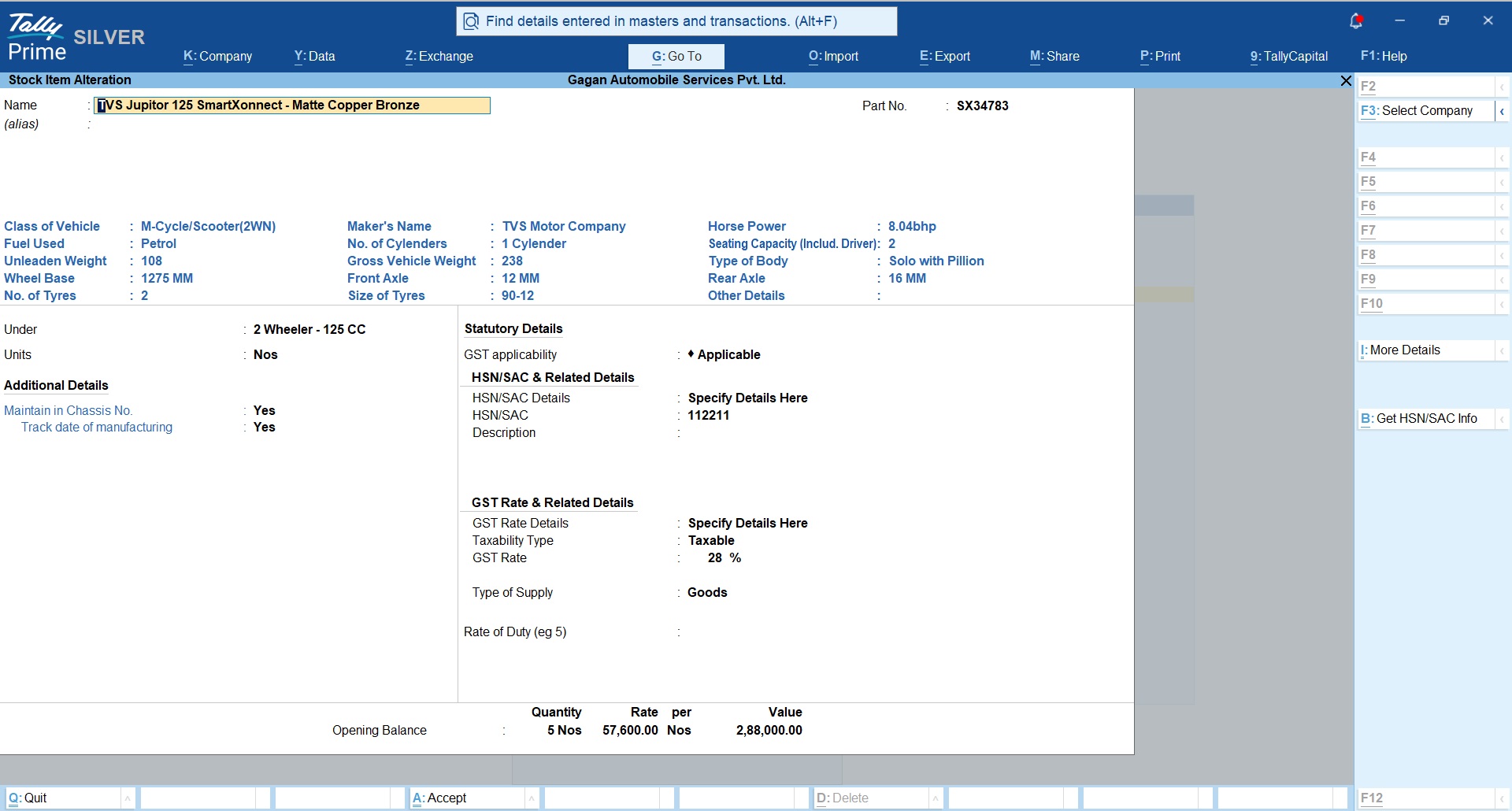
Vehicle Master
Following new fields are introduced based on the requirements of Vehicle details;
Vehicle Details
- Class of Vehicle
- Fuel Used
- Unleaden Weight
- Wheel Base
- No. of Tyres
Manufacturer & Specifications
- Maker’s Name
- No. of Cylenders
- Gross Vehicle Weight
- Front Axle
- Size of Tyres
Performance & Dimensions
- Horse Power
- Seating Capacity (Includ. Driver)
- Type of Body
- Rear Axle
- Other Details
Additional Details
- Maintain in Chassis No.
- Track date of manufacturing
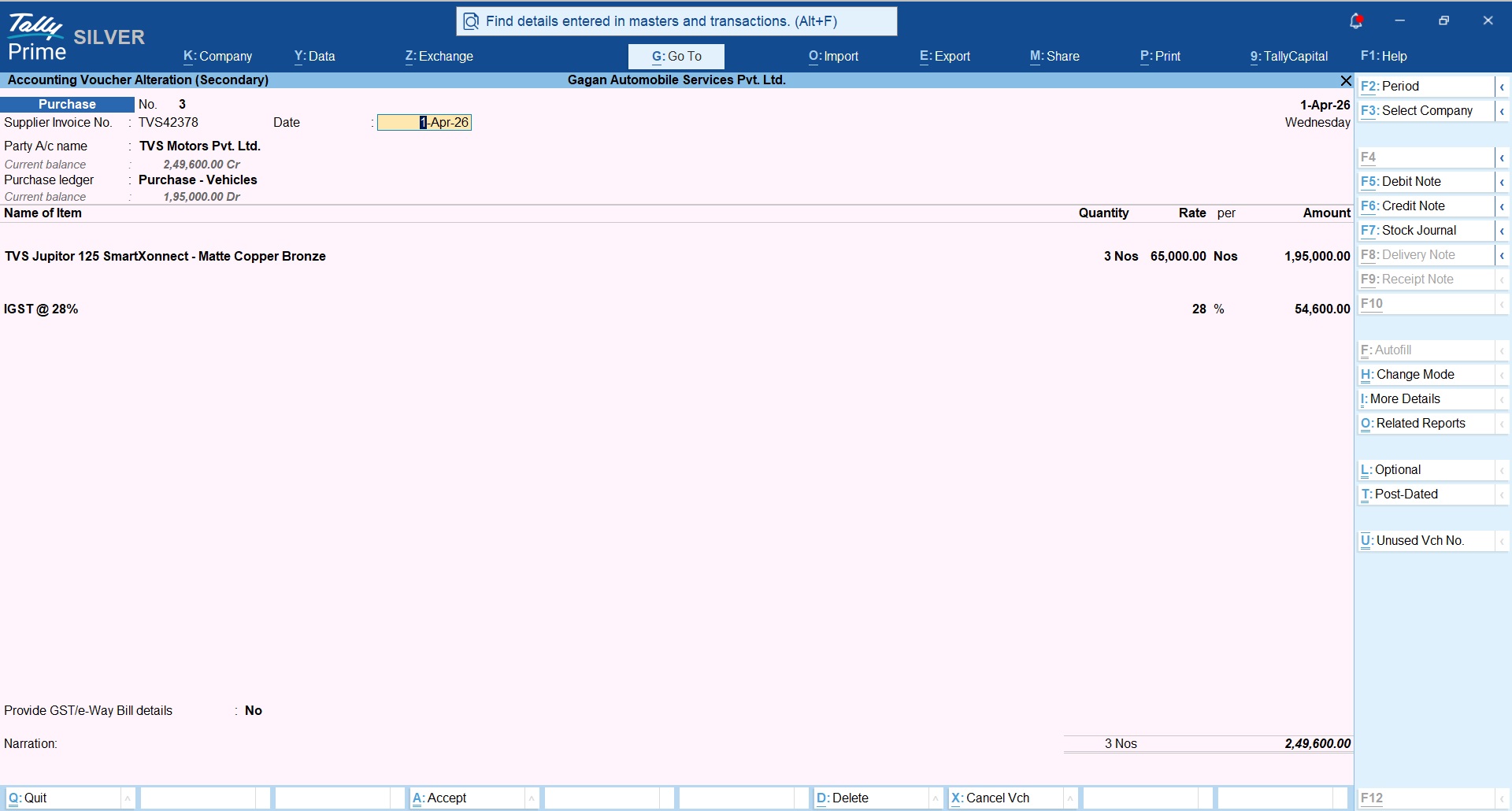
Vehicle Purchase Entry
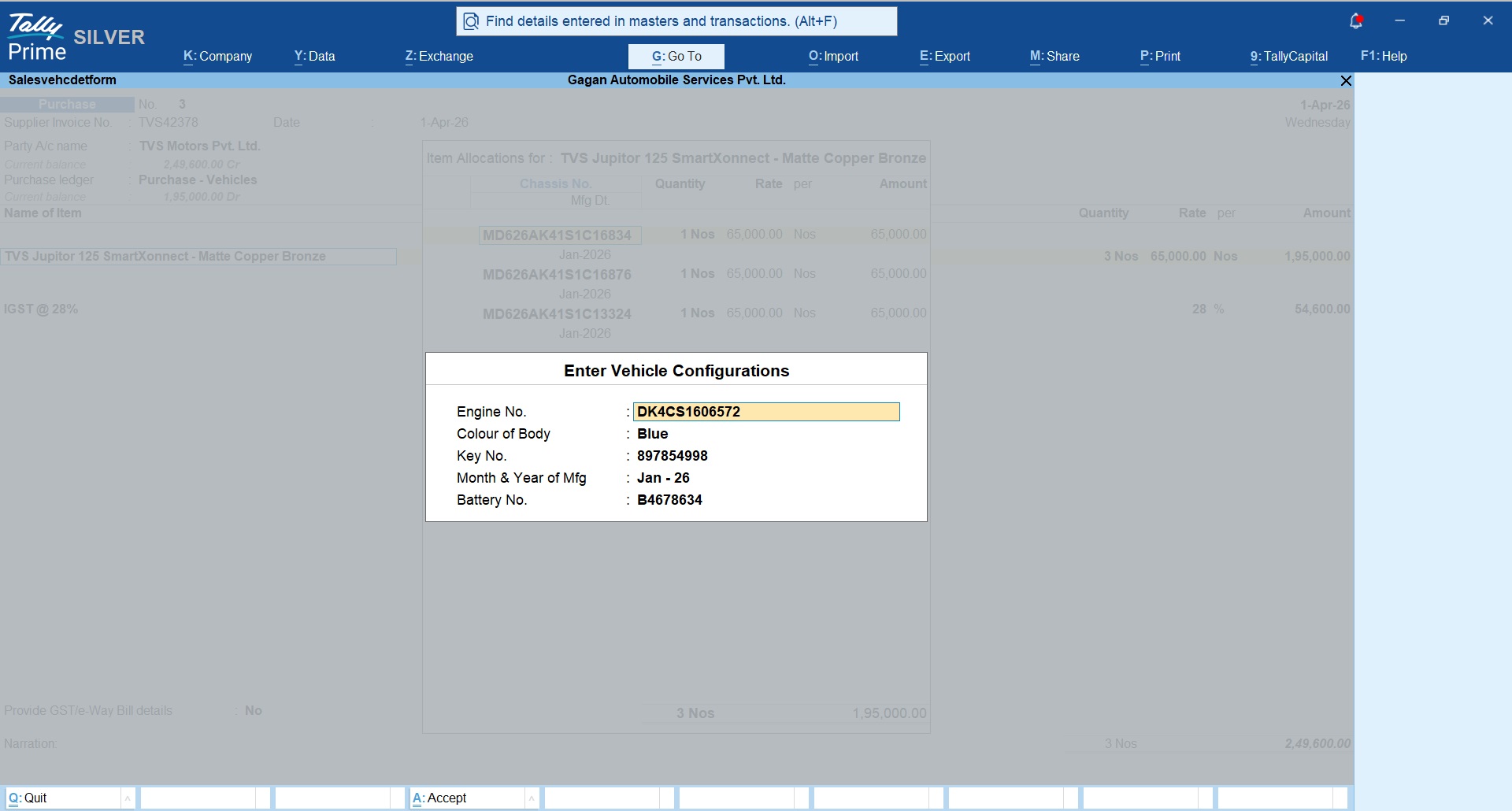
While recording vehicle purchase entry you can enter chasis details of each vehicles along with other details like ;
- Engine No
- Color of Body
- Key No
- Mfg Month & Year
- Battery No
Above details are unique for each vehicle and our module allows to capture them seperatly.
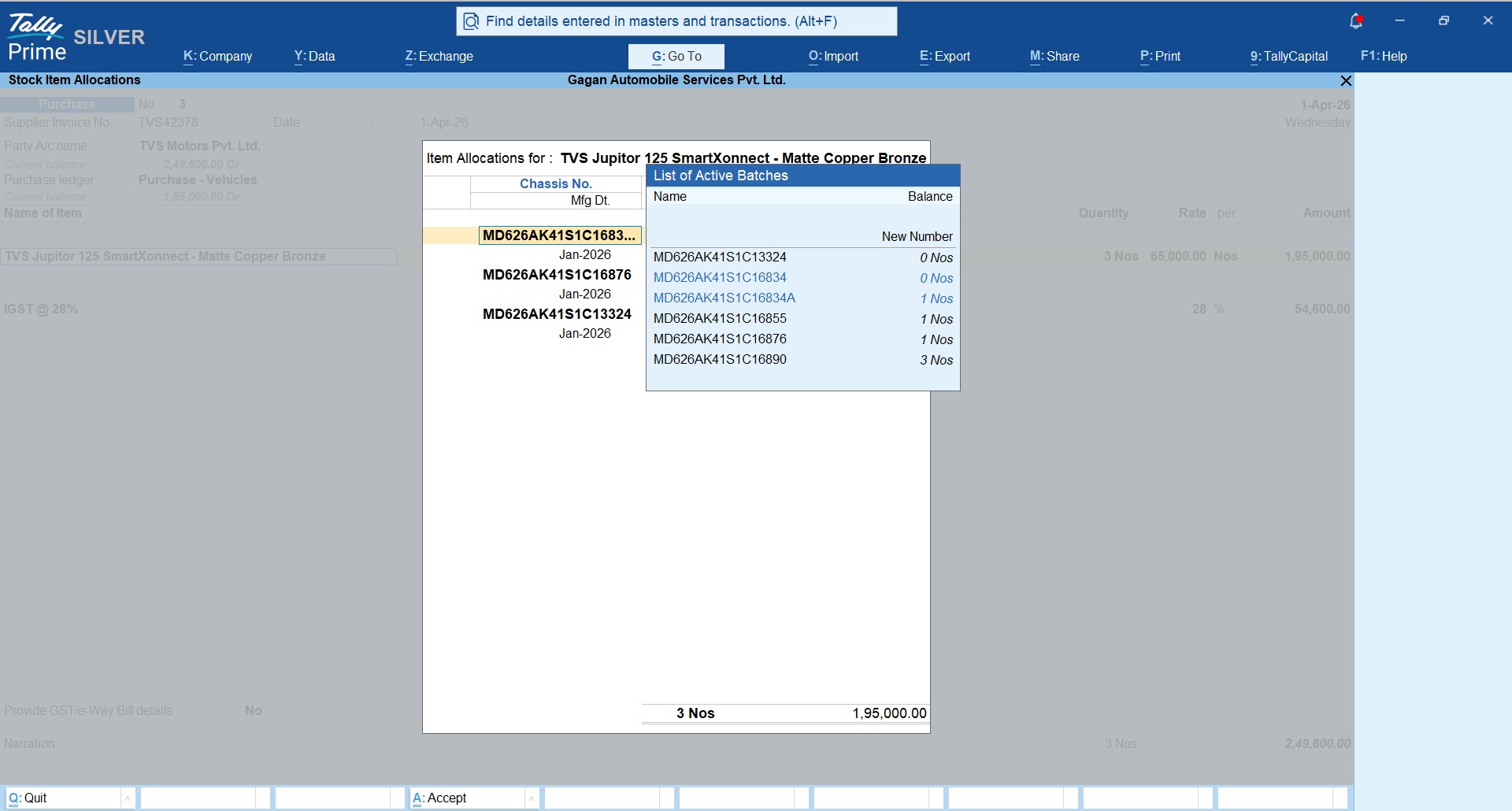
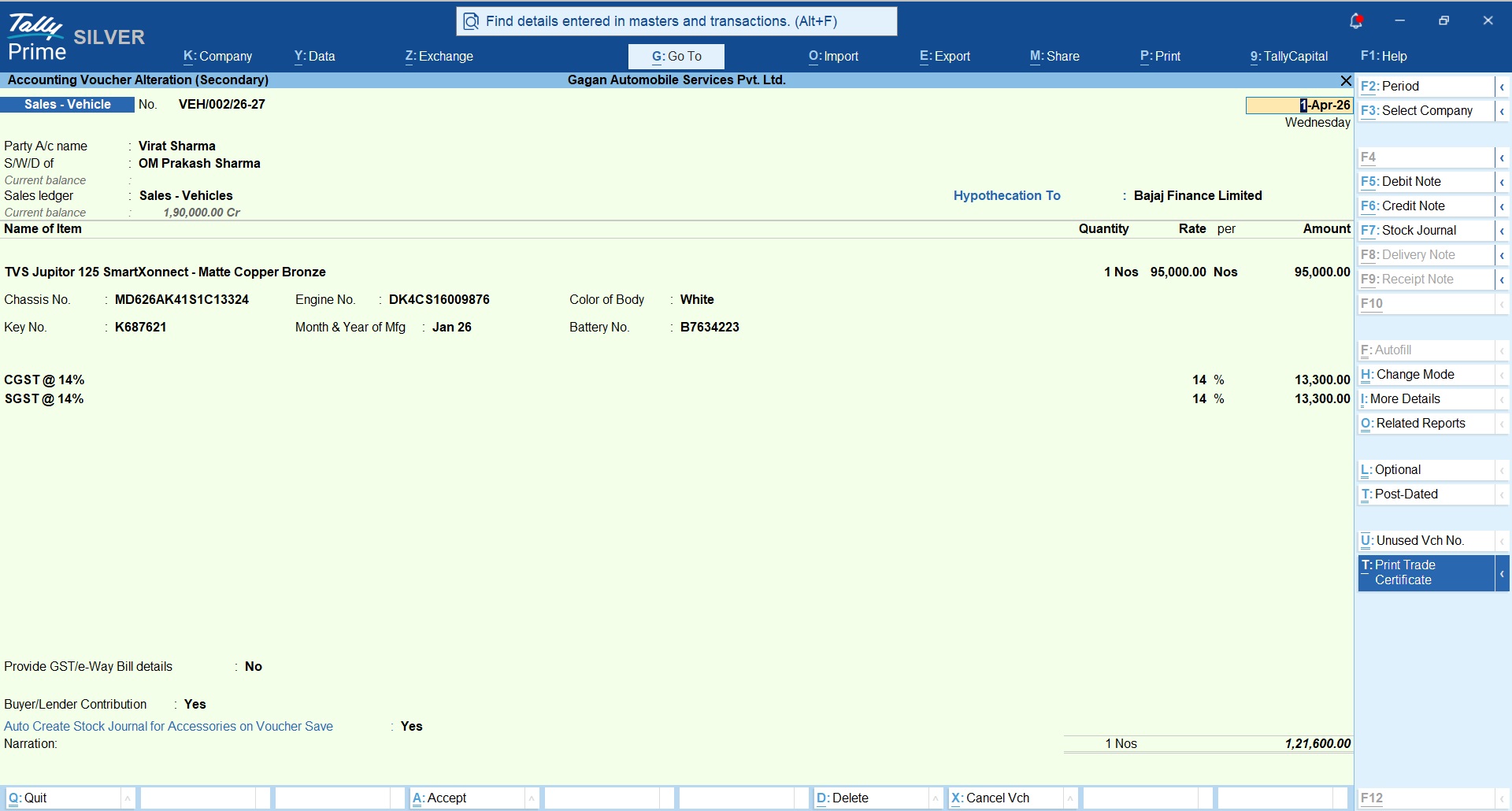
Vehicle Sales Entry
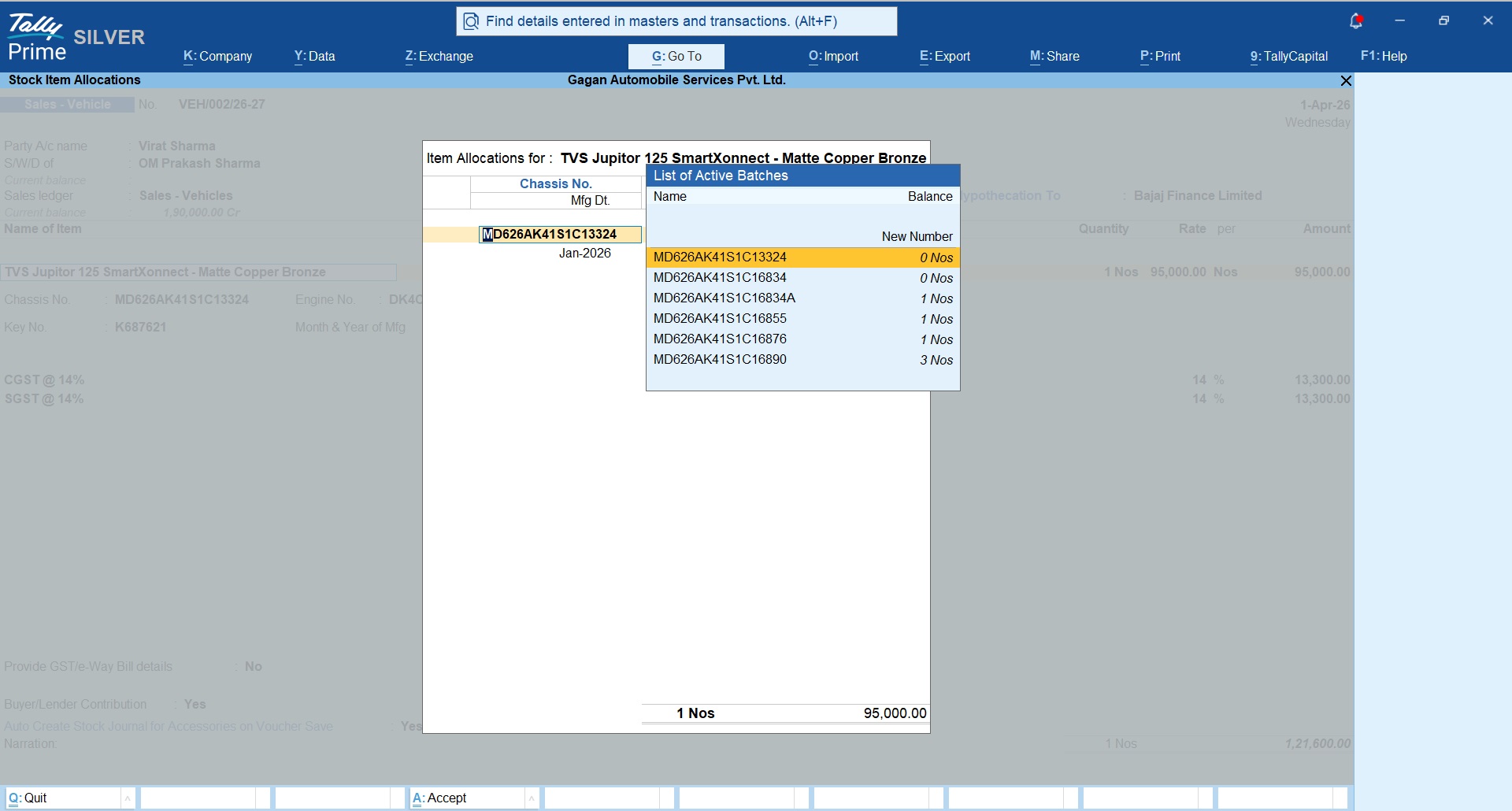
While recording vehicle sales entry after selecting primary vehicle item system will prompt to select the Chasis number from the list and once you select the assisgned chasis number all vehicle details of the selected item will be populated automatically based on the data entered while recording purchase voucher.
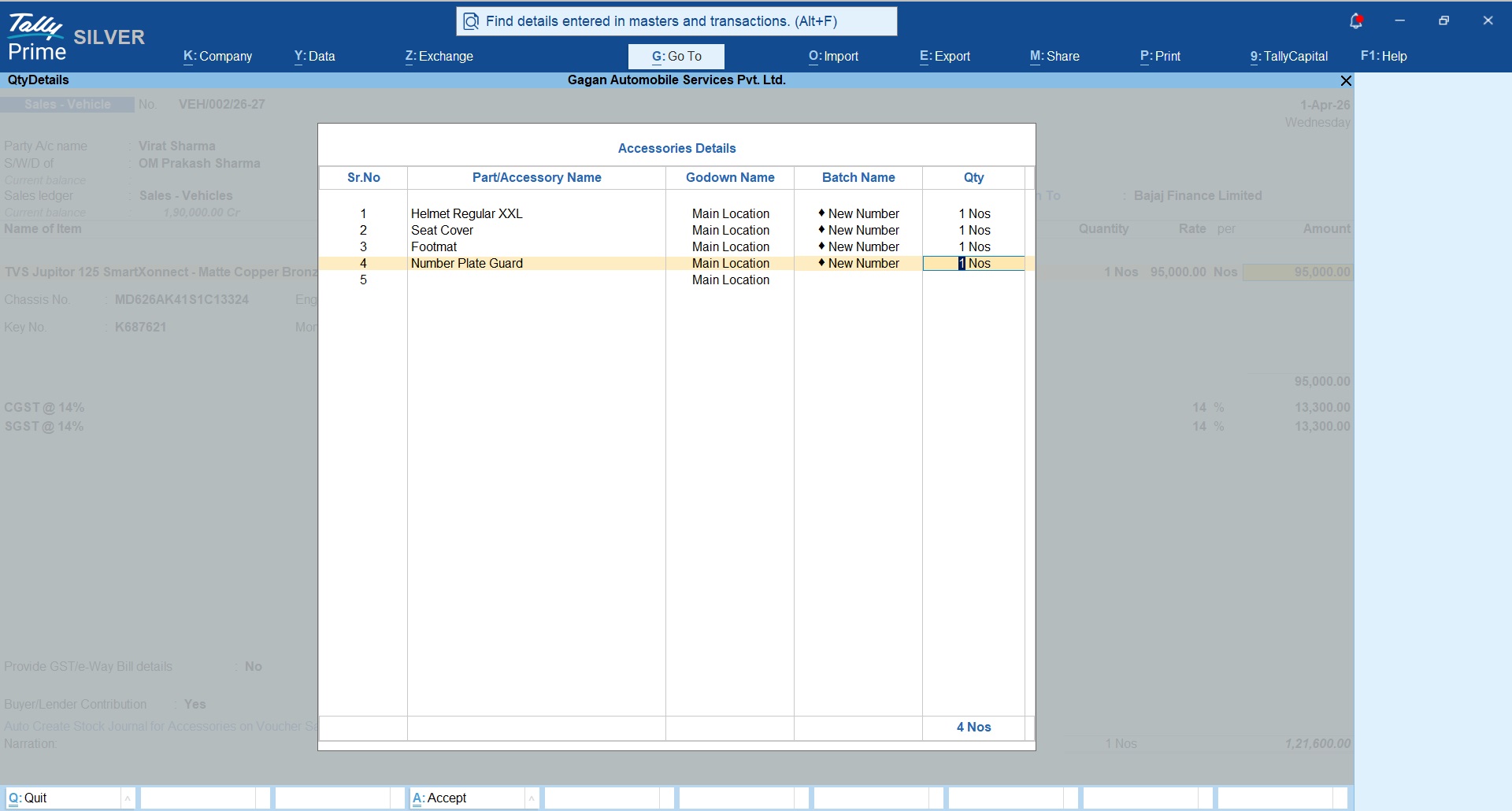
System will also prompt to select the list of Accessories that are issued free with this sales.
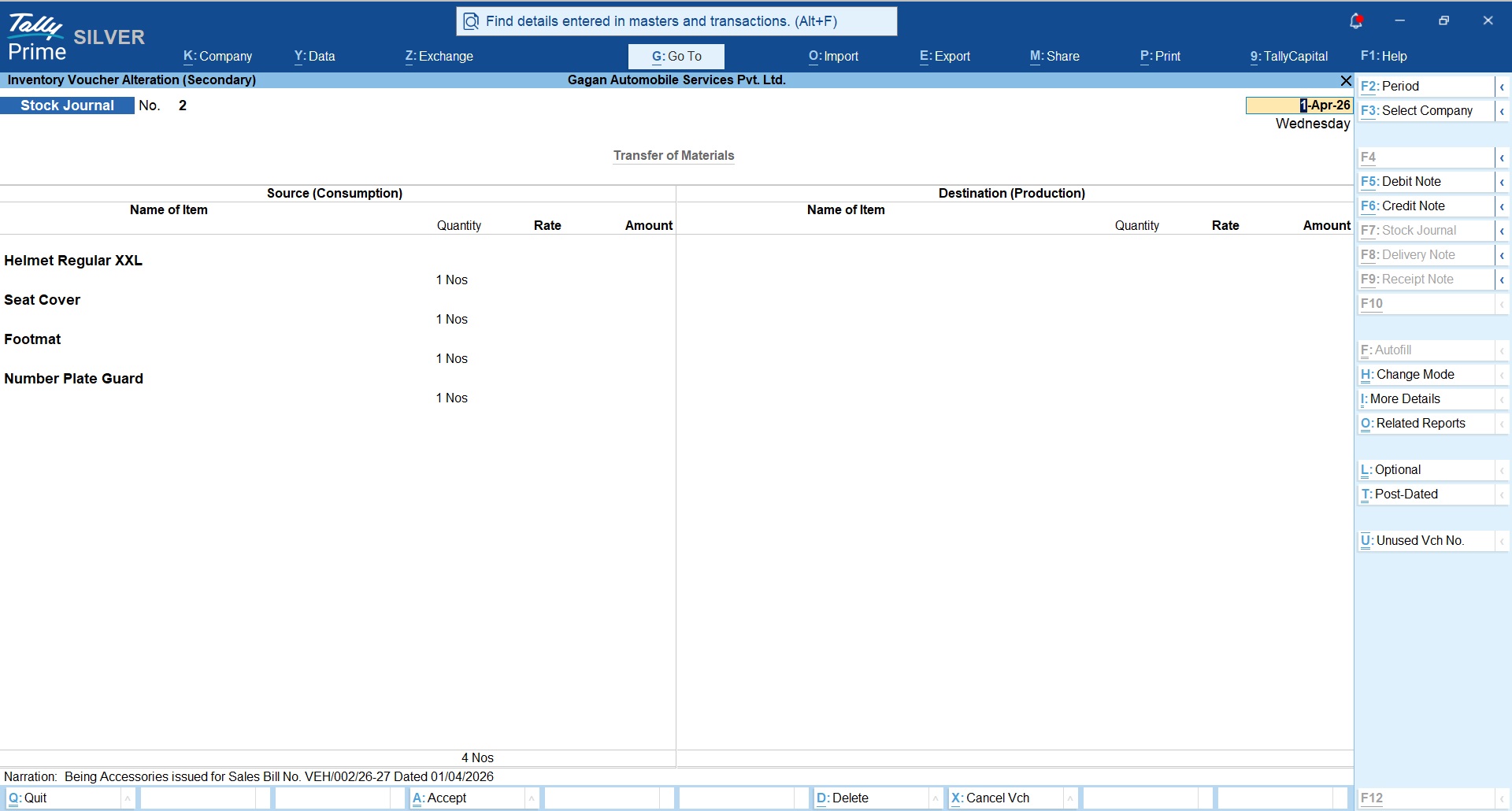
Accessaries selected here with be printed on the Tax Invoice and corresponding stock journal entry will be posted automatically to debit the stock of accessories issued.
Vehicle Sales Invoice & Form 21
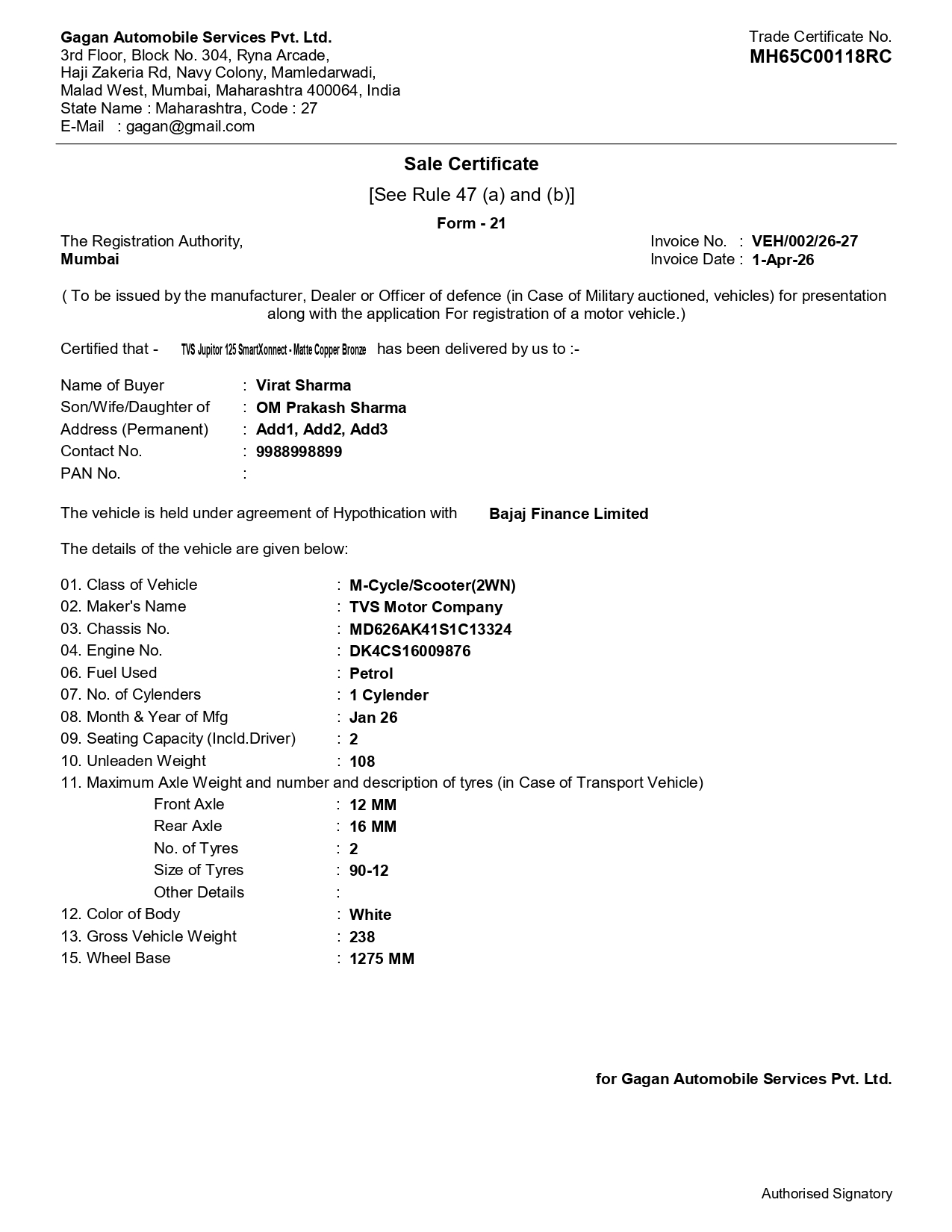
Following customized Vehicle Sales Invoice and Vehicle Sales Form 21 will be generated from TallyPrime.
Vehicle Sales Certificate Form 21
Buyer & Lender Contribution
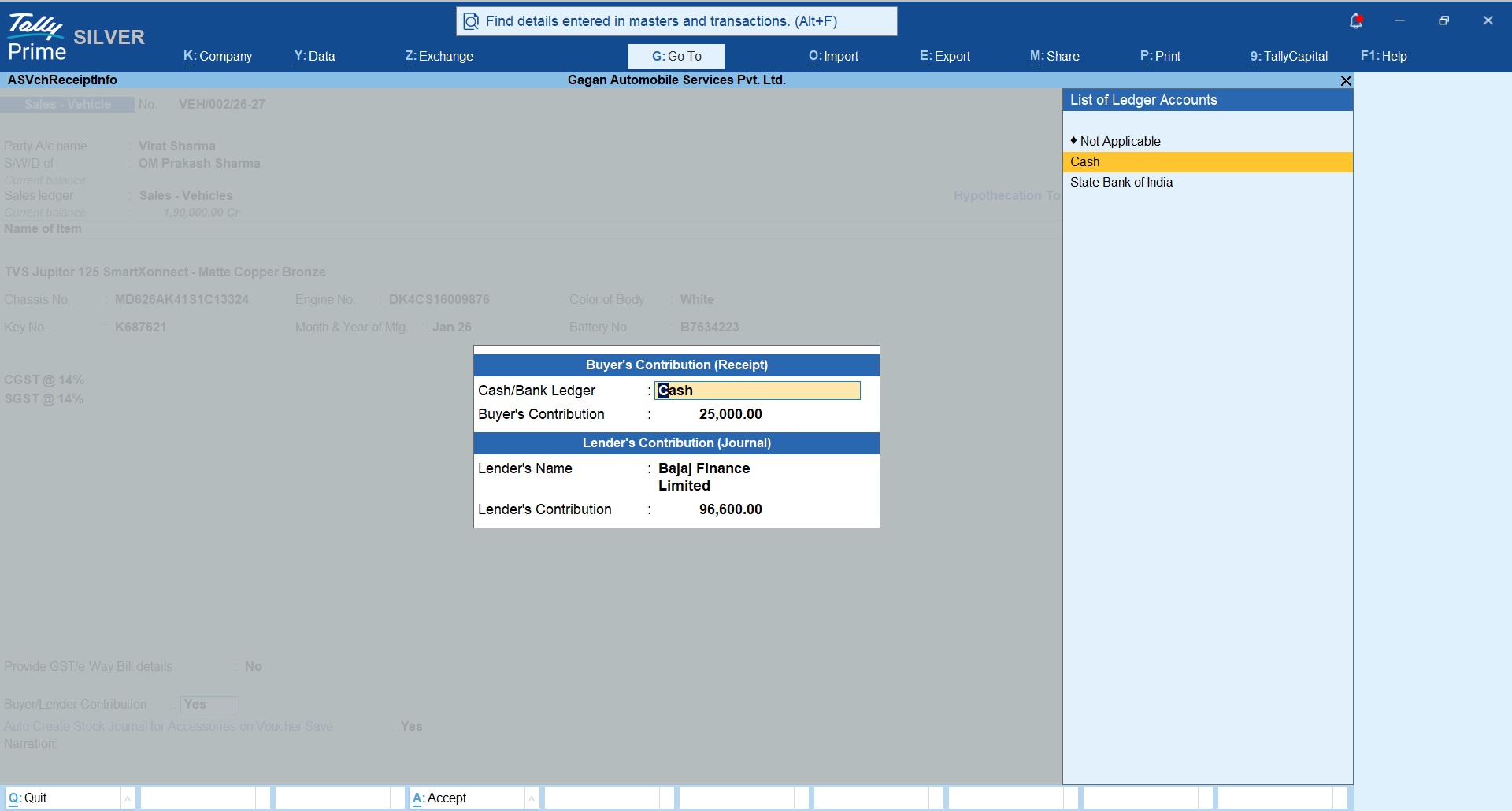
In most cases customer buys a vehicle on finance/EMI basis.
To handle this case you can define Buyer & Lender Contribution seperatly as shown in following snapshot;
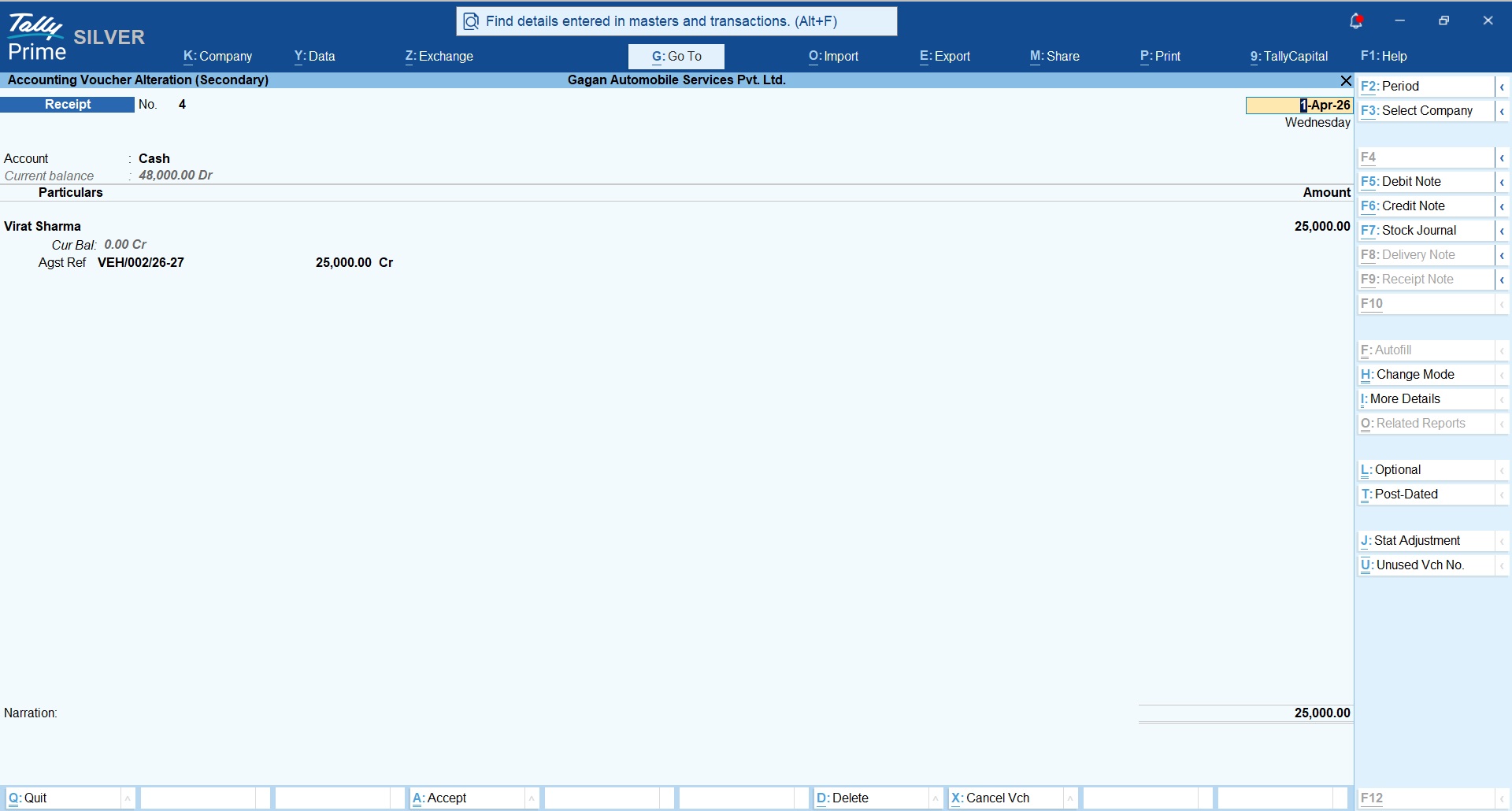
Buyer Contribution
Receipt voucher will be created automatically for the buyer’s contribution
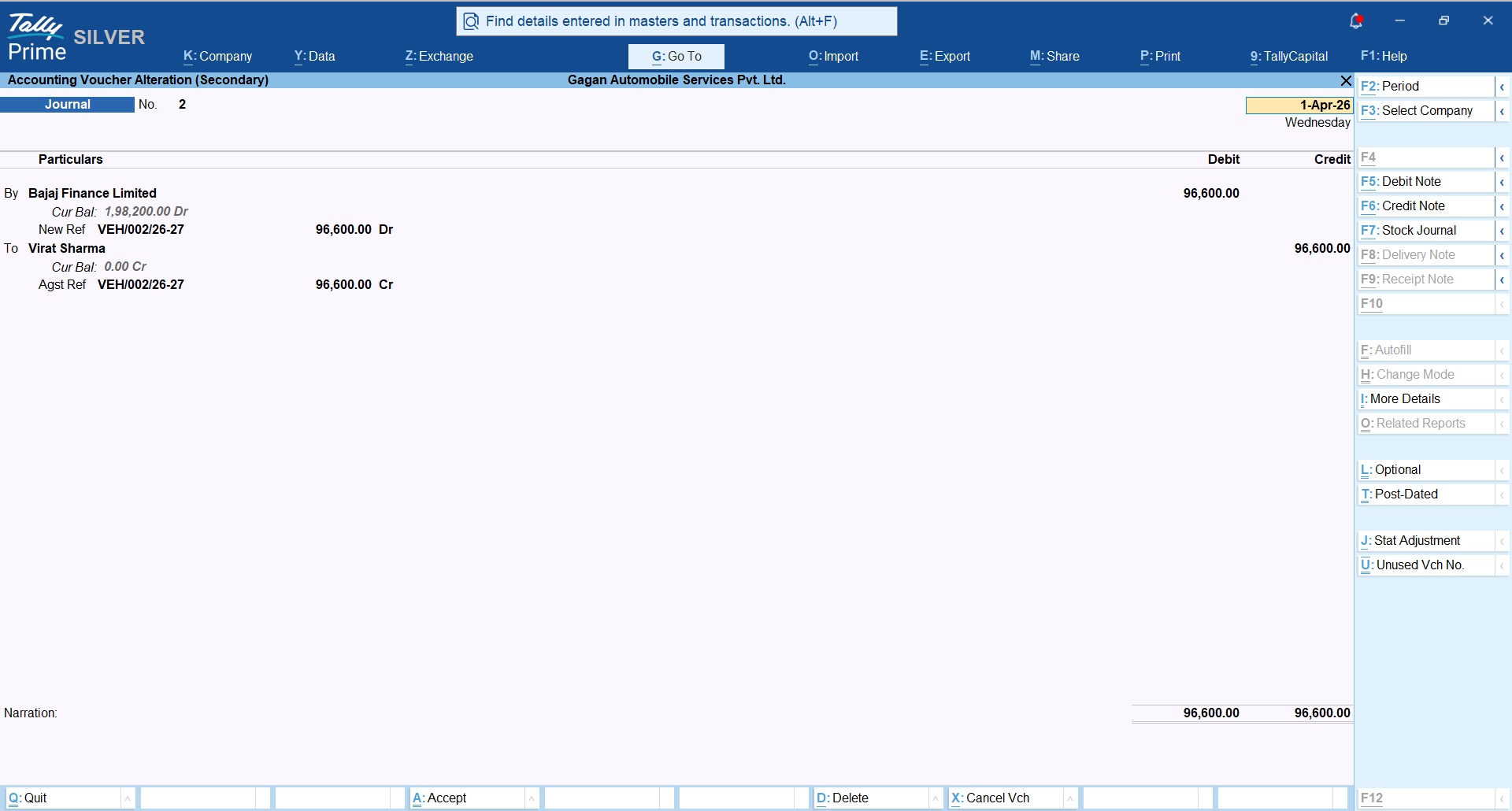
Lender Contribution
Journal voucher will be created automically as shown in below snapshot where Finance Company will be Debited and Buyer will be Credited with the finance amount.
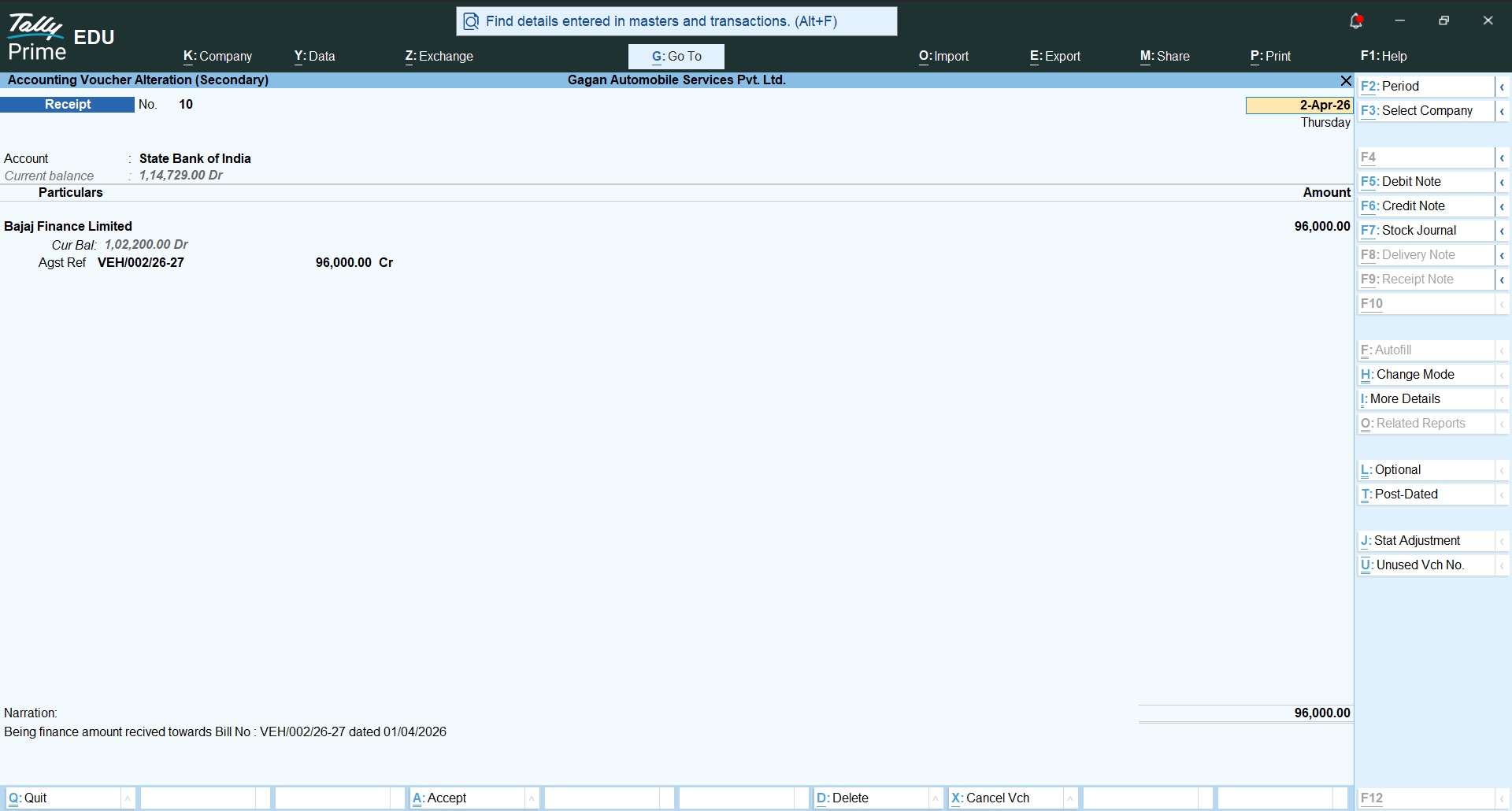
Later receipt entry will be recorded when amount is received from the finance company;
Stock Journal for Accessory Items Issued
Following stock journal will be created automatically based on the free accessory items selected while creating sales bill.
Vehicle Sales Register
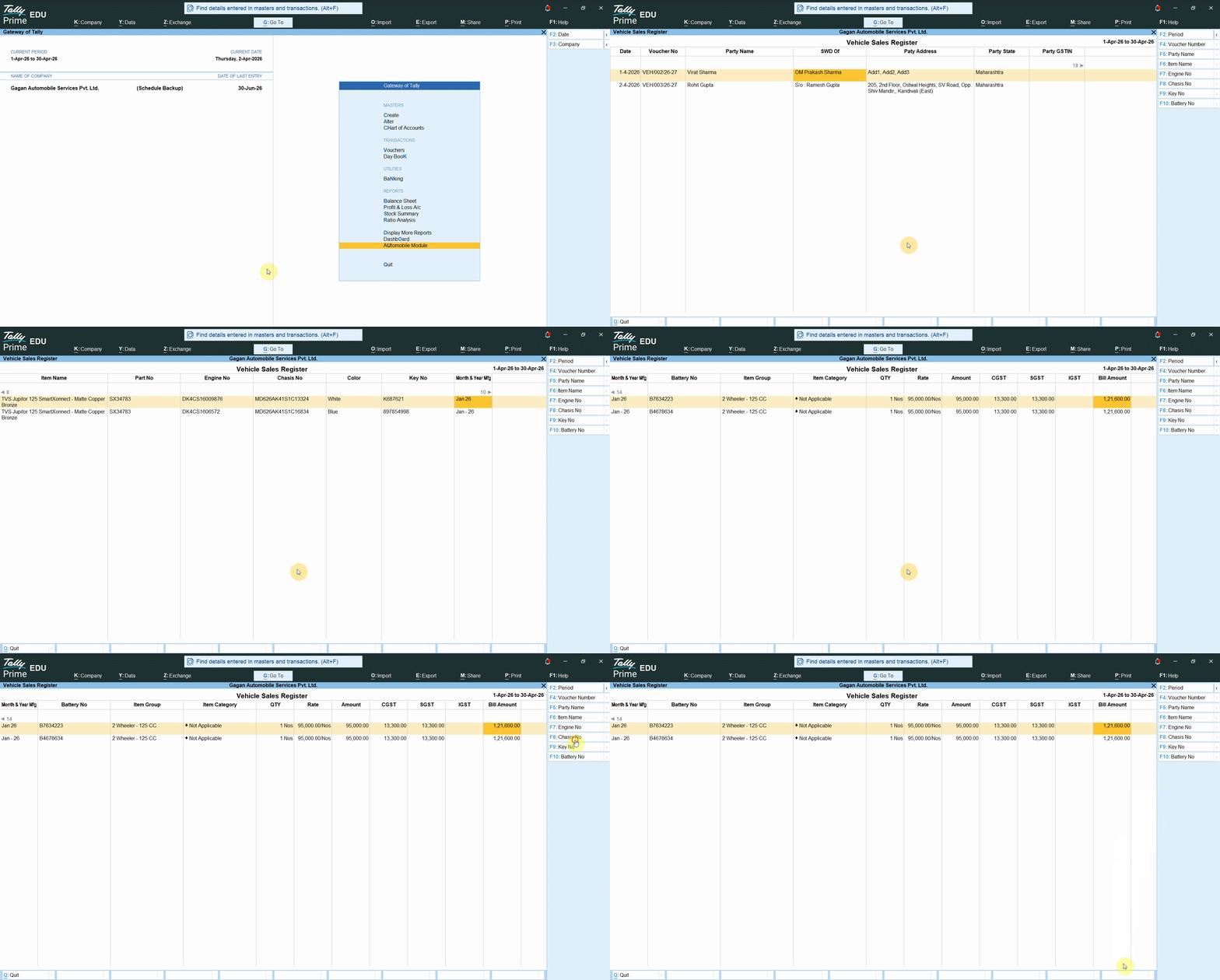
A detailed vehicle sales register is available as shown in below snapshots;
Download Free Trial Now
Buy Module Now
Original price was: Rs. 6,999.Rs. 4,999Current price is: Rs. 4,999. + GSTBuy Now